
Team Workflows in Dolphin Anty: Sharing Profiles, Roles and Proxies without Losing Accounts
Published · 9 min read
This article was written by the Dolphin{anty} team. Affiliate marketing is rarely a one-person business. As a team grows, different specialists take responsibility for account creation, campaign management, testing, analytics and other technical tasks, and each person needs access to the profiles, proxies and tools required for their part of the work.
Why teams need collaboration tools
Working as a team creates a number of challenges. Profiles need to move between employees without losing their data, team leads need to control access and administrators must be able to manage shared resources without giving everyone unrestricted permissions. The situation becomes even more complicated when employees change projects, leave the team or take on new responsibilities.
That's why teams benefit from antidetect browsers with built-in collaboration features. Instead of relying on messengers, team members can manage access from one place. Let's look at how these workflows are organized in Dolphin Anty.
Transferring profiles
Dolphin Anty provides two ways to distribute profiles among team members: transferring and sharing. Although both options are available through the same interface, they serve different purposes.
A profile transfer is a complete handover: the profile disappears from the sender's account and becomes available to the recipient. To transfer a profile in Dolphin Anty:
- Select one or several profiles in the Browser Profiles section.
- Click the "Share profiles" button in the bulk actions menu.
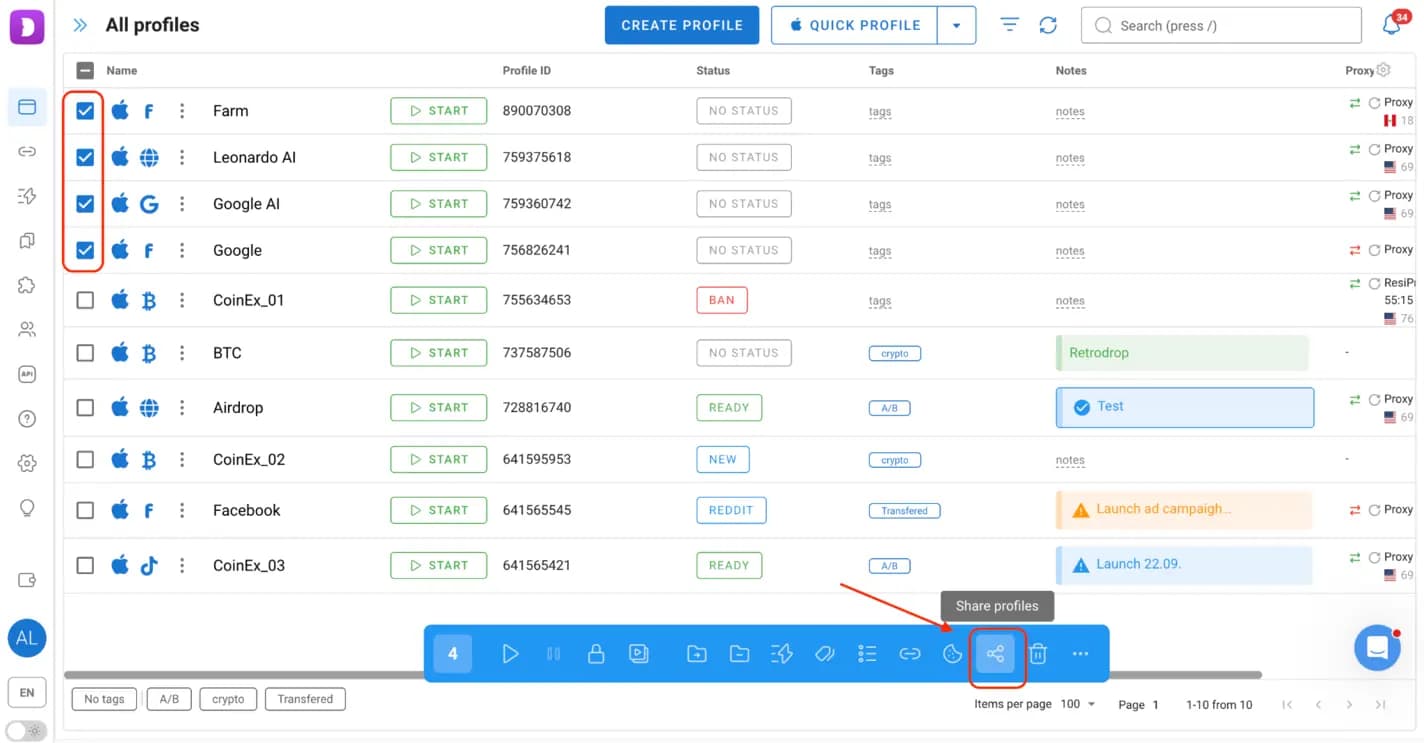
- Choose the Transfer tab.
- Choose the recipient.
- Choose whether to include the proxy associated with the profile.
- Confirm the transfer.
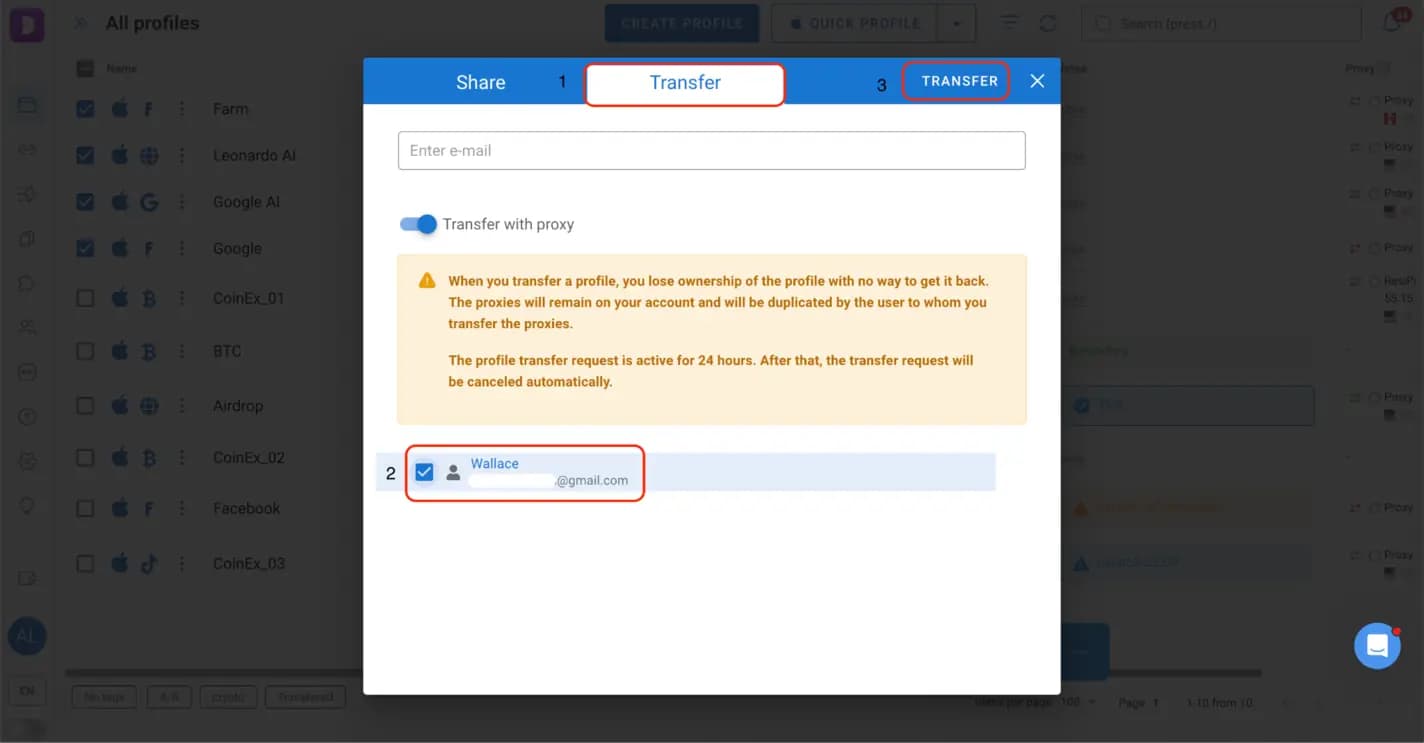
Once the request is sent, the profile is blocked from launching and waits for the recipient's decision. The recipient can accept or reject it from their account.
The transfer includes the profile's data with cookies and local storage. This means the recipient gets the existing profile rather than having to create a new one and configure everything from scratch.
One more useful detail: profiles can be transferred between accounts even if the recipient has already reached their profile limit. This makes it easier to redistribute profiles without first deleting existing ones.
Sharing profiles
Profile sharing is designed for situations when two or more specialists need to work with the same account while its original owner retains control. Unlike transferring, sharing grants another team member permission to use it. The owner can continue working with the profile and manage access for other users.
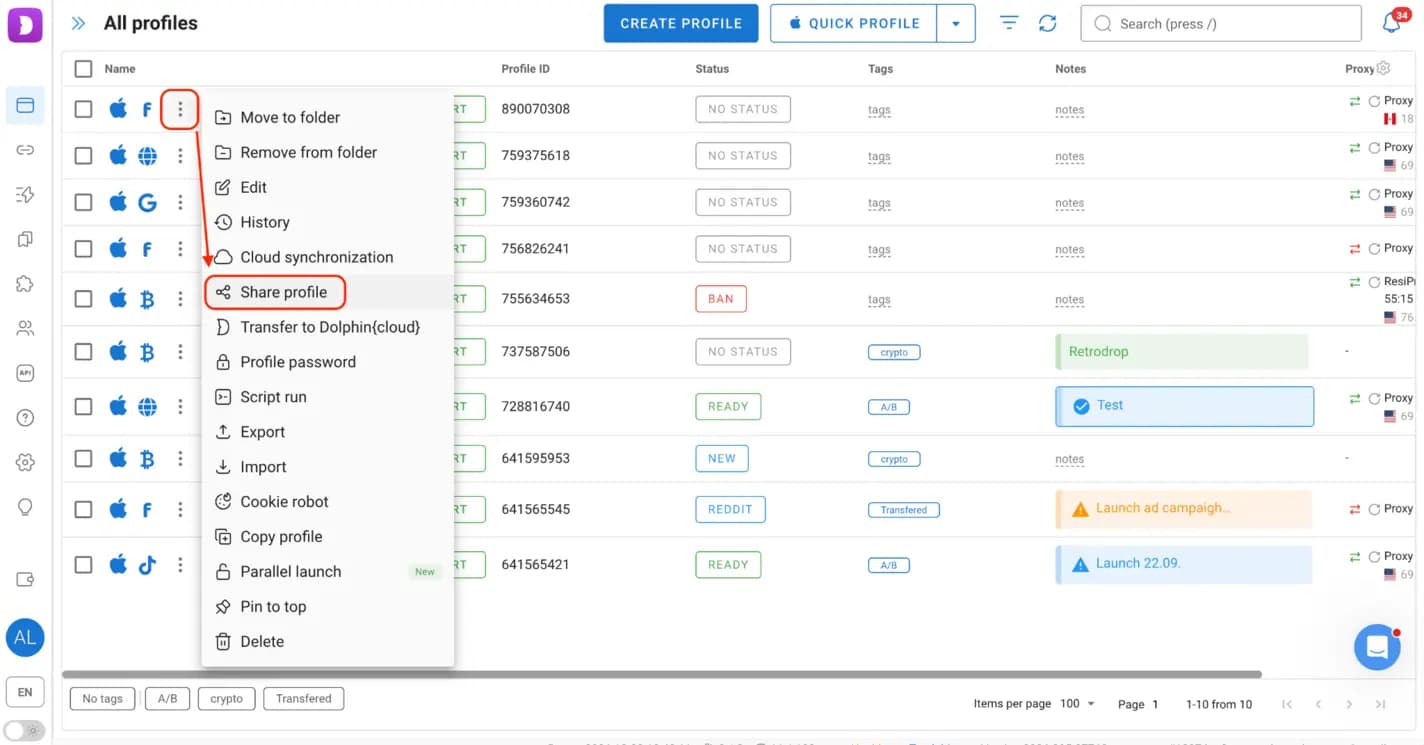
There are two ways to share profiles in Dolphin Anty. For a single profile, open its context menu and select "Share profile".
You can grant permissions to team members and manage existing access rights.
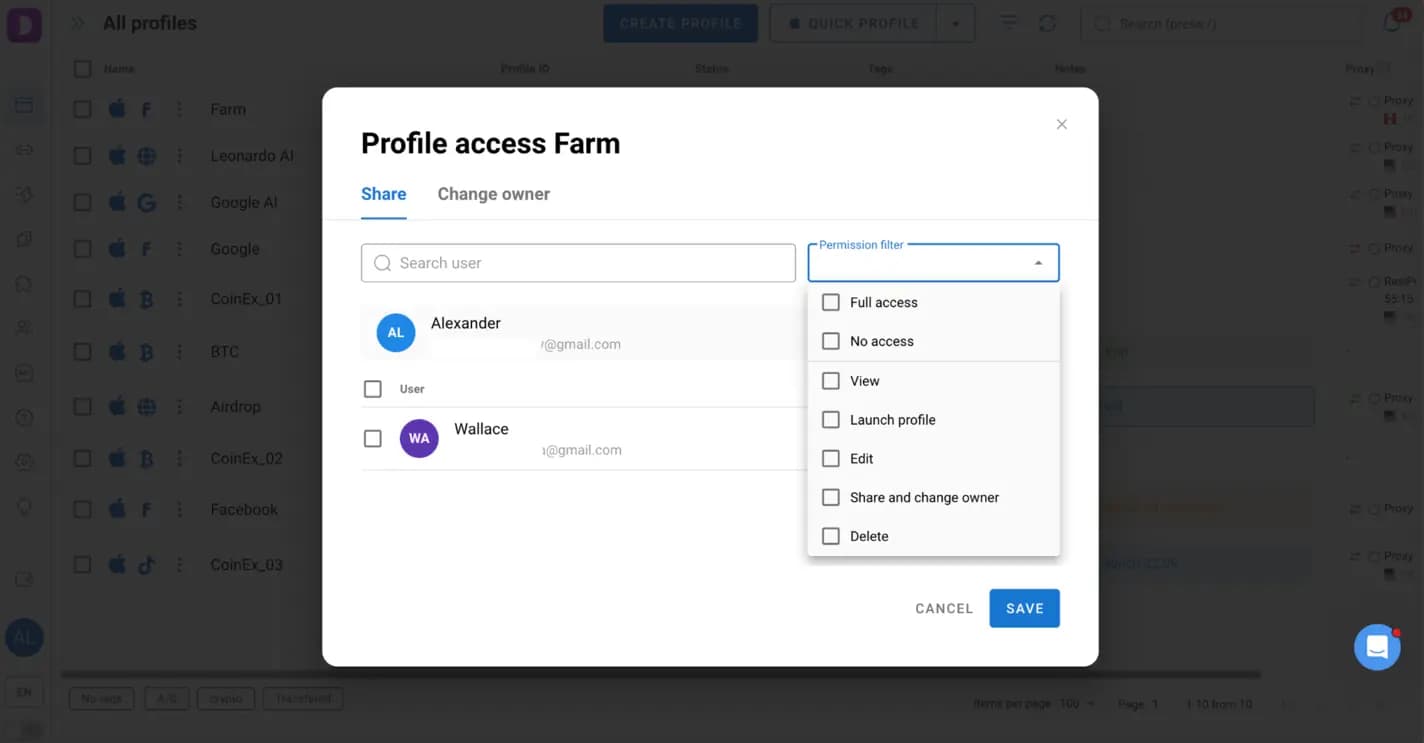
If you need to share several profiles at once, select them in the profile list, click "Share profiles" in the bulk actions bar and open the Share tab. Choose the team members who need access and specify which actions they can perform.
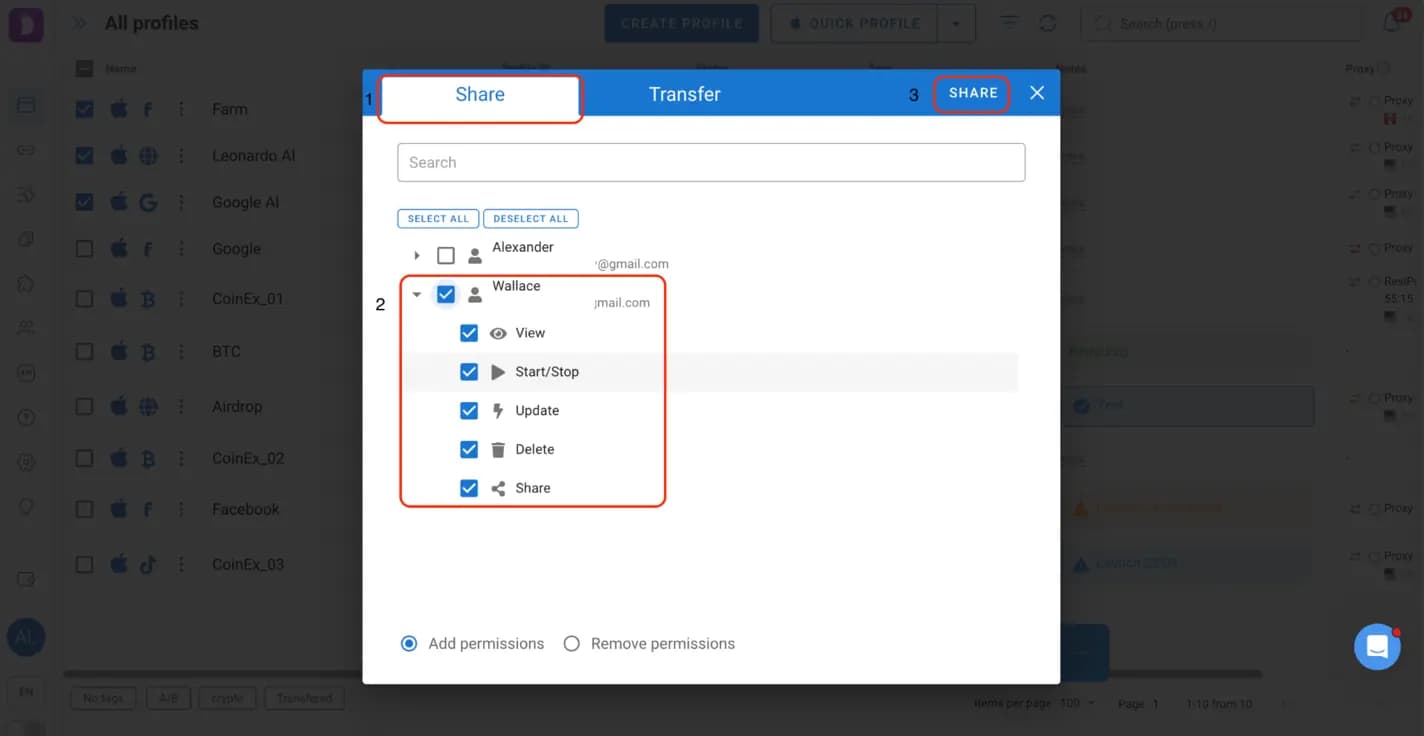
Permissions can be configured individually. For example, one employee can be allowed to launch and use a profile, while another can also edit its settings or manage access. You can change or revoke these permissions whenever the team's responsibilities change.
Sharing folders, proxies and scenarios
Profiles are not the only resources that teams need to distribute. Employees may also require access to specific proxies, folders containing project profiles or scenarios used to automate routine tasks. Dolphin Anty also provides sharing options for these resources.
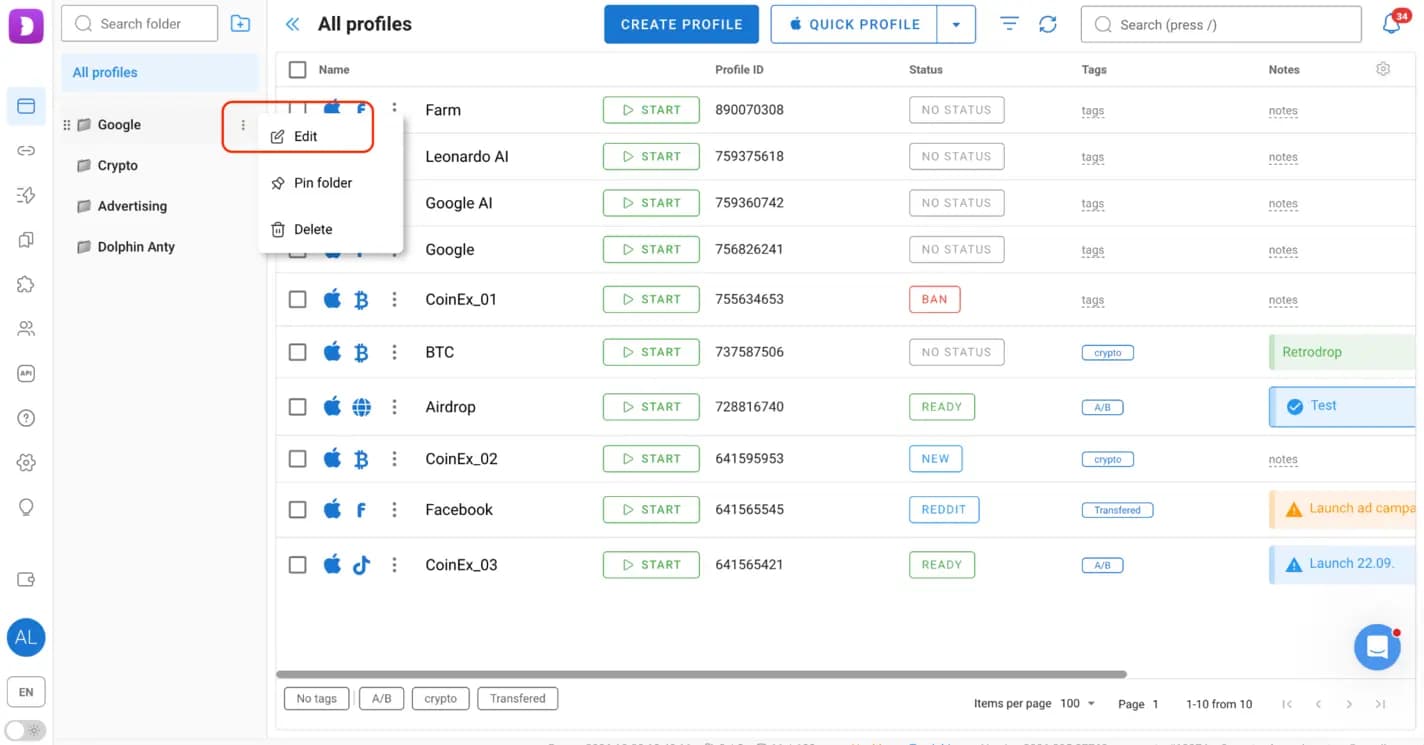
Folders. Folders help organize profiles by project, advertising platform, traffic source or geo. Instead of granting access to each profile individually, an administrator or team lead can share an entire folder with the relevant employees. To share an existing folder, open the folder list, click the three-dot menu next to its name and select "Edit".
Enable the "Share folder" option and choose the team members who should have access. You can also configure sharing when creating a new folder.
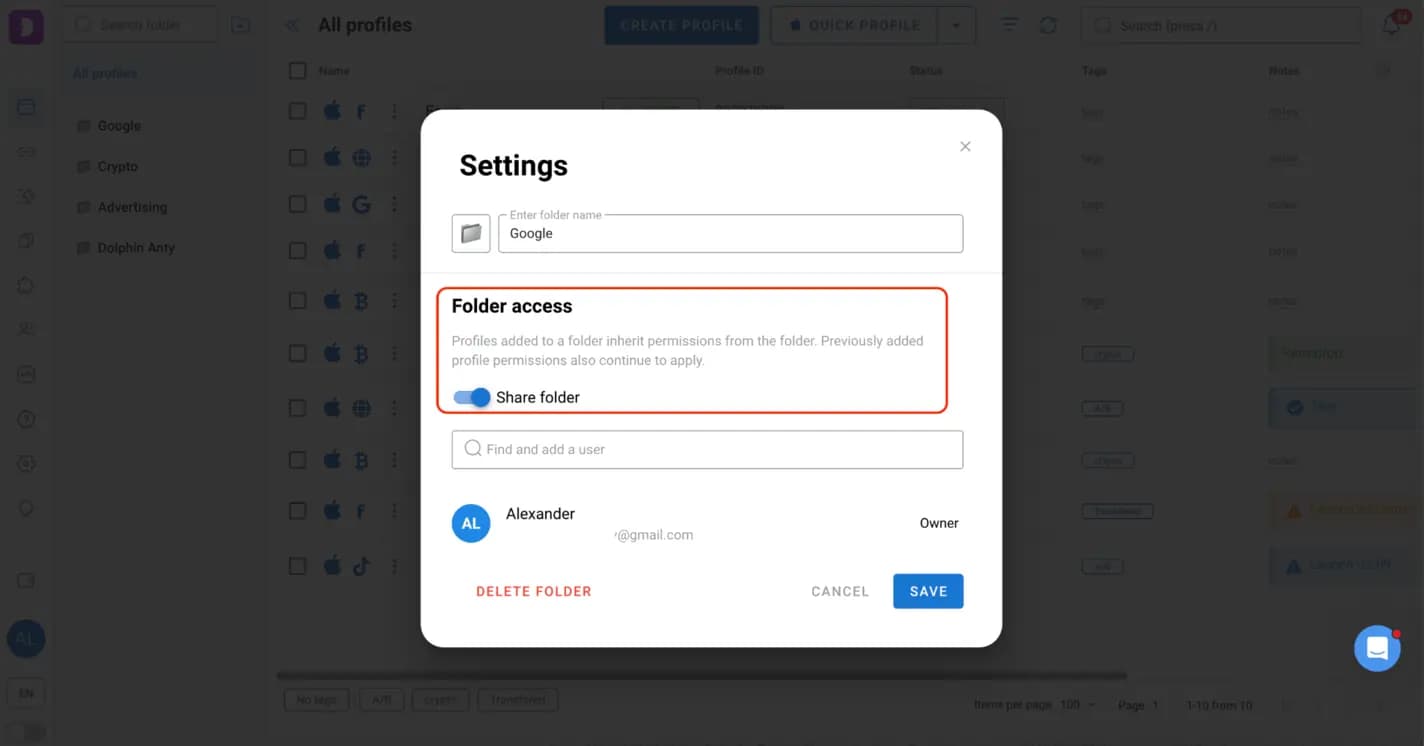
Folder permissions are more flexible than a simple view-only setting. Depending on the assigned rights, a team member can:
- view the folder and its profiles;
- change folder settings or delete the folder;
- launch profiles;
- edit profile settings;
- share profiles with other users;
- delete profiles;
- move profiles into or out of the folder.
This is particularly useful when several specialists work on the same project but have different responsibilities.
Proxies. Different profiles may require different IP addresses, and team members need access to the correct connection settings when working with assigned accounts. To share proxies, open the Proxy section, select the required ones and click "Share". Choose the team members who need access and save the changes.
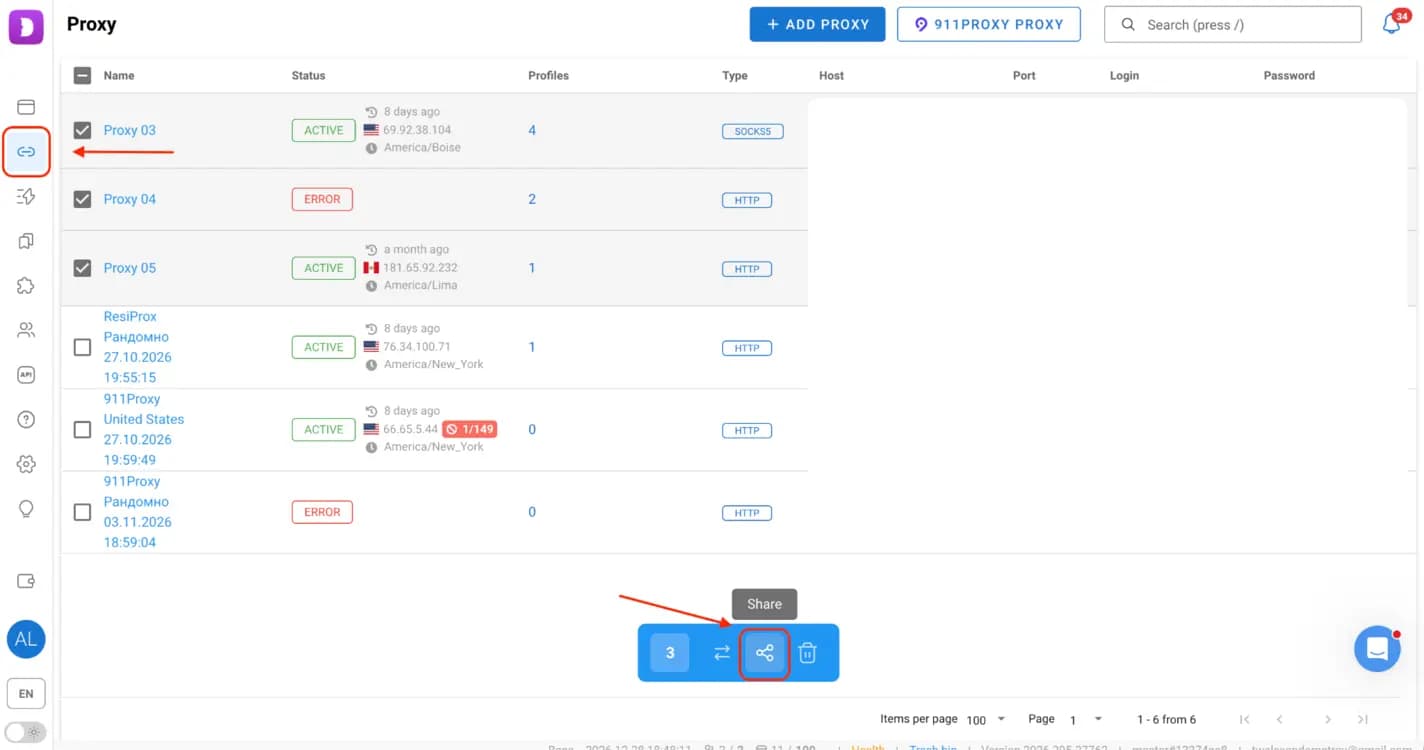
Team members can use the assigned proxies directly in Dolphin Anty, while administrators retain control over who has access to them.
Scenarios. Automation can save a considerable amount of time when a team performs repetitive actions across multiple accounts. Dolphin Anty's Scenario Builder allows users to create scripts that automate sequences of browser actions.
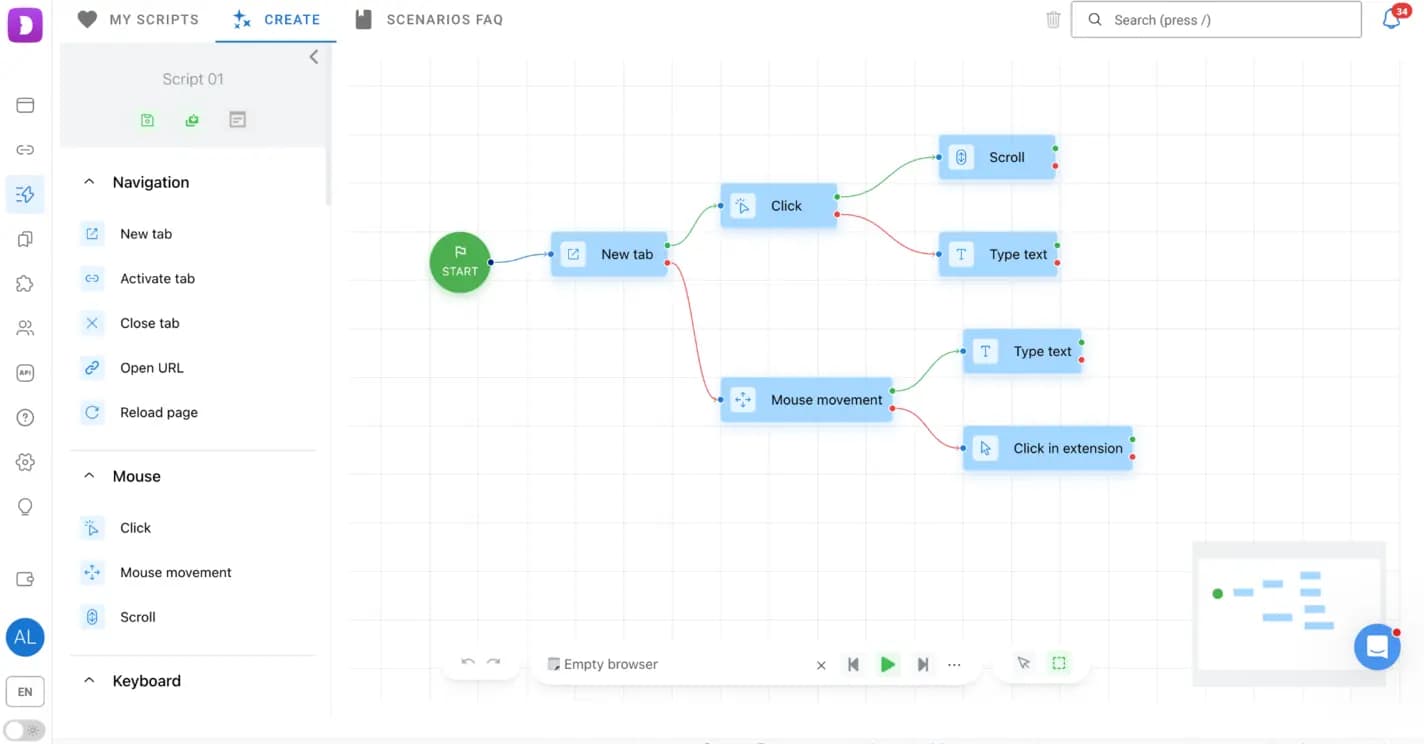
Sharing these scenarios means employees don't have to recreate the same automation scripts independently: a specialist can develop and test a scenario, then make it available to other team members. Open the Scenarios section, select the required ones and use the "Transfer" option. The scenario will appear in the recipient's account without requiring them to accept a transfer request.
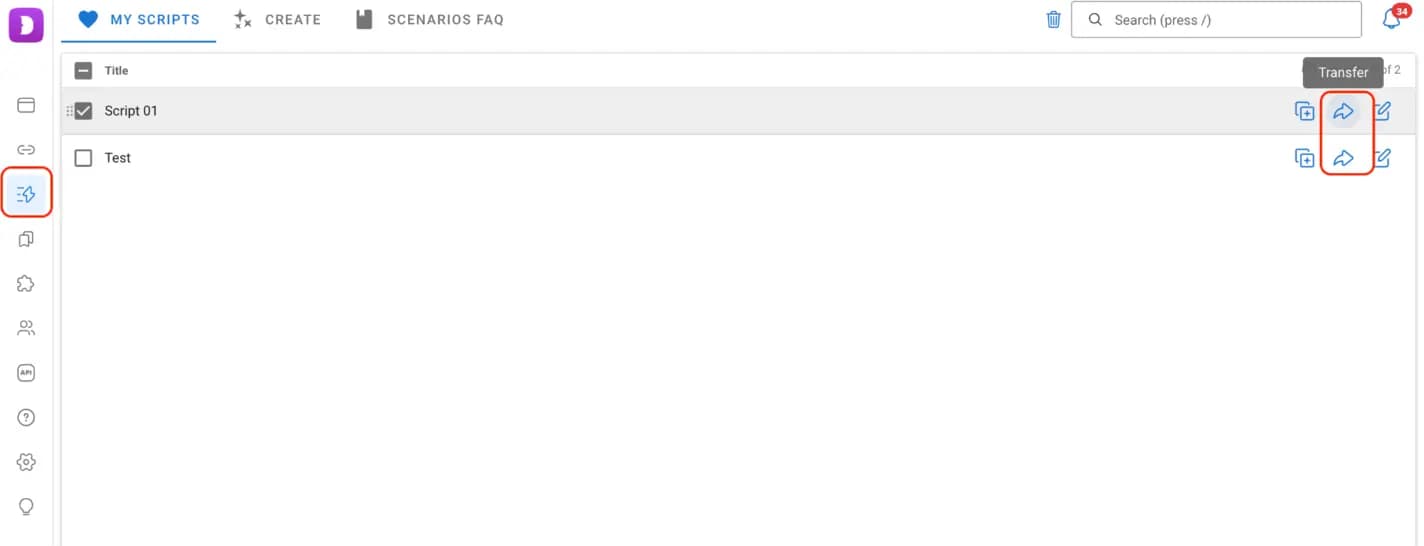
This makes it easier to distribute tested automation solutions across a team and maintain consistent procedures when several specialists perform similar tasks.
User roles and access management
A team rarely operates as a completely flat structure. Some employees are responsible for managing projects and making decisions, while others focus on specific technical tasks. Giving everyone the same level of access is rarely practical, especially when a team works with dozens or hundreds of profiles. Dolphin Anty addresses this through three user roles: Admin, Teamlead and User.
Admin. The Admin has full access to the team's workspace and its data. This role is generally intended for the person responsible for managing the entire operation. An administrator can create and delete users, assign roles, change passwords and access levels, and view, edit and use profiles belonging to any team member. When creating or editing a user, an administrator can also set a limit on the number of profiles they are allowed to create.
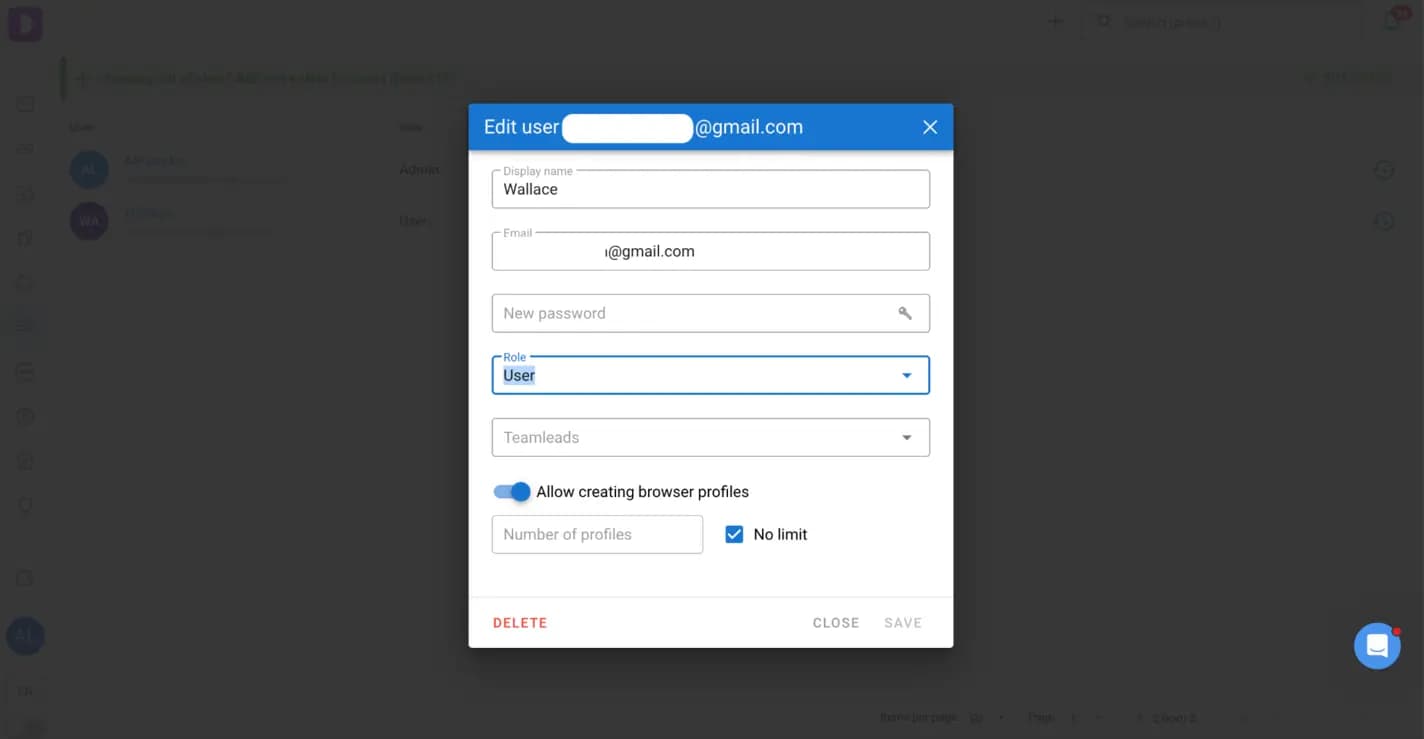
The Admin can also assign Teamleads to specific users, creating a hierarchy.
Teamlead. A Teamlead manages only the employees assigned to them by an administrator. They can view, launch and edit their team members' profiles, but cannot create or delete users, change passwords or modify user roles. This allows team leads to supervise their own departments or projects without administrative control over the entire workspace.
User. A User has access to their own profiles and the resources shared with them. They can create, configure and delete profiles, manage proxies and share profiles with other team members. However, regular users cannot manage other employees or change their passwords and roles. When an administrator or team lead shares a profile with them, the available actions depend on the permissions granted.
Removing a team member without losing profiles
Employees may leave a project, move to another department or stop working with the team. Removing their access should not mean losing the profiles.
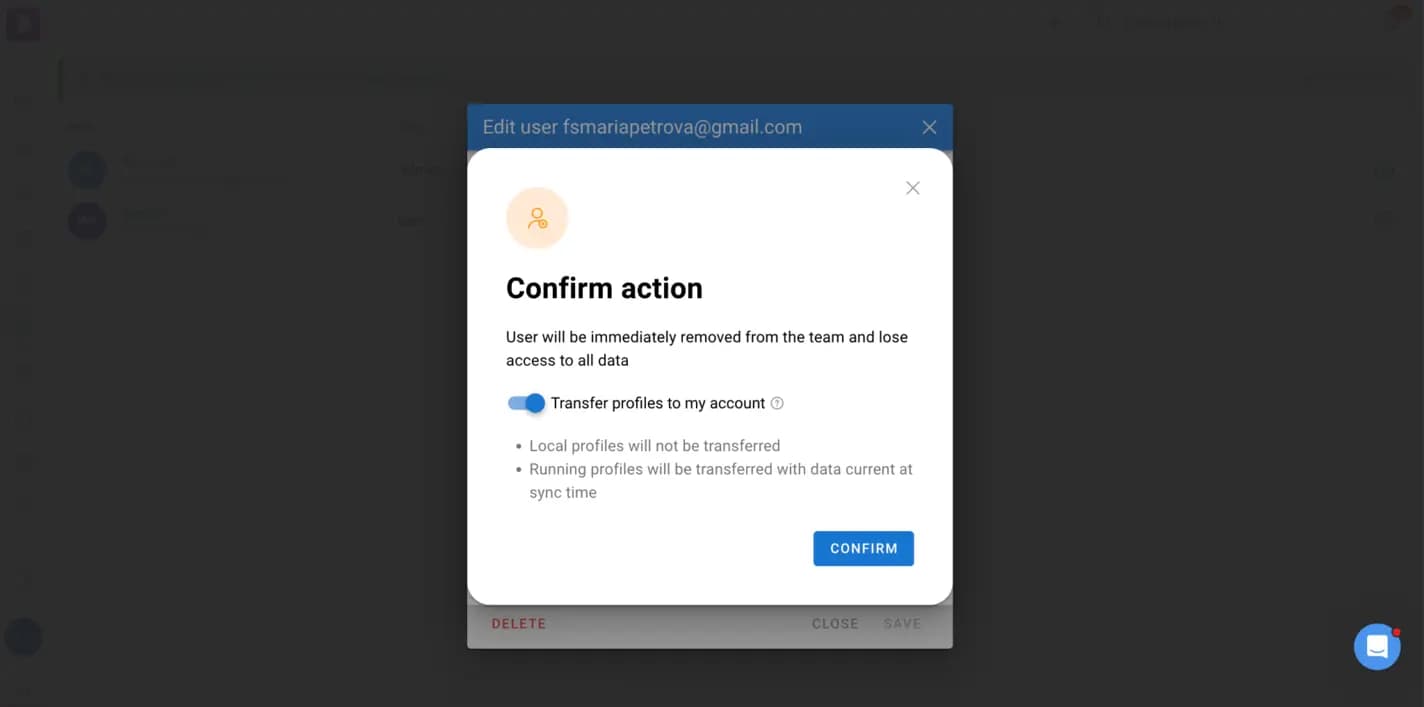
Dolphin Anty has a dedicated option for this situation. Before deleting a user, the administrator can enable "Transfer profiles to my account". The user's active cloud-synced profiles will then be transferred to the administrator.
Switching between accounts
Some specialists work with several Dolphin Anty accounts at the same time. This can happen when they manage different projects, cooperate with multiple teams or maintain separate workspaces. Constantly logging out and entering credentials again makes switching between accounts unnecessarily time-consuming.
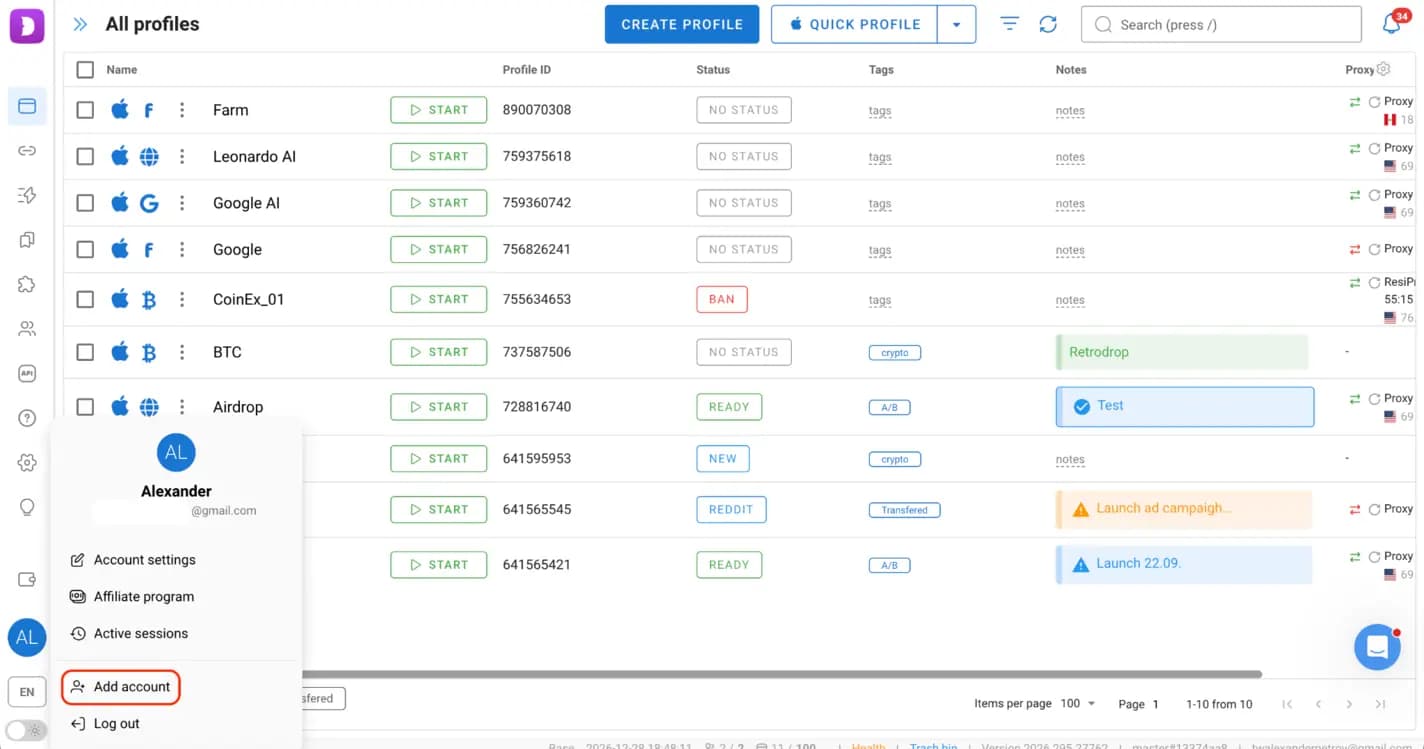
Dolphin Anty allows users to save their login details and switch between accounts in just a few clicks. After the initial authorization, the added accounts remain available in the account switcher.
Why accounts don't get lost
Losing access to an account can be costly, especially when it has already been warmed up, contains important business data or is actively used in advertising campaigns. In a team the risk is not limited to account bans or technical failures: an employee leaving the project, a device change or an incorrectly handled profile transfer can also interrupt access.
Dolphin Anty helps prevent these problems by keeping the information required to continue working with an account inside its browser profile:
- when a profile is transferred, its cookies and local storage move with it;
- when an employee is removed, cloud-synced profiles can be transferred to the administrator;
- when several specialists work with the same profile, sharing allows them to use the existing account without creating separate copies.
Cloud synchronization is particularly important here. It allows profile data to be stored in the cloud and accessed from different desktop devices, so a team member does not have to rely on the computer where the profile was originally created.
Another useful feature is profile activity monitoring: Dolphin Anty can show who launched a profile and on which device. Parallel launch blocking prevents several team members from opening the same profile simultaneously, reducing the risk of synchronization problems and data loss. Administrators can also close another team member's active session when necessary.
Dolphin Anty pricing plans
Dolphin Anty offers several subscription options, depending on the number of browser profiles and the scale of the team. The main differences concern profile limits, additional user seats and collaboration features.
| Plan | Monthly price | Profiles and users | Best suited for |
|---|---|---|---|
| Free | $0 | Up to 3 profiles, 1 user | Beginners who want to explore the browser and test its basic functionality. |
| Starter | $10 | 20 profiles by default, expandable to 60; 1 user | Individual specialists working with a relatively small number of accounts. |
| Base | $89 | 100 profiles; 1 user included, additional users at $10 each | Small teams that need profile sharing, user roles and collaboration tools. |
| Team | $159 | 300 profiles; 1 user included, additional users at $20 each | Growing teams that manage multiple projects and need more profile capacity. |
| Enterprise | $299 | From 1,000 profiles, expandable up to 50,000; 1 user included, additional users at $25 each | Large teams and companies that require extensive profile capacity and centralized management. |
Conclusion
Teamwork in affiliate marketing requires more than just giving employees access to browser profiles. Teams need a clear structure for distributing responsibilities, sharing resources, transferring accounts and retaining important data when their composition changes.
Dolphin Anty brings these processes together in one browser. Profile sharing and transfers help employees collaborate without duplicating accounts, user roles make access management more predictable, and shared proxies, folders and automation scenarios simplify everyday tasks. Cloud synchronization and fingerprint consistency help maintain continuity when profiles move between specialists or devices.
Mobile proxies for your team's profiles
A shared profile only works well if its connection stays the same, whoever opens it: to the platform, the account always connects from the same place, even as it moves from one teammate to another. That's why it pays to tie each profile to its own proxy and share them together, as shown above.
- One mobile proxy per profile: IPs from real mobile carriers, the same ones used by people browsing on their phones.
- The same connection for the whole team: whoever opens the shared profile uses its proxy, from any city.
- A new IP when you need it, with the rotation link, without touching the profile's settings.
How to set up a ProxyHub proxy in a profile: Dolphin{anty} guide.
Frequently asked questions
What user roles are available in Dolphin Anty?
Dolphin Anty offers three roles: Admin, Teamlead and User. They have different permissions for managing employees, profiles and shared resources.
Can I recover profiles when deleting a team member?
Yes, an administrator can enable the Transfer profiles to my account option when deleting a user. Their cloud-synced profiles will be transferred to the administrator, preserving their data.
Can multiple team members use the same browser profile?
Yes, Dolphin Anty supports profile sharing with customizable permissions. However, parallel launch blocking prevents multiple users from launching the same profile simultaneously.
What discount does the PROXYHUB20 code give?
20% off your first Dolphin{anty} subscription. Enter it at checkout on dolphin-anty.com.
Try a 5G mobile proxy
Dedicated smartphone, unlimited traffic, real carrier IPs. Live in seconds.
See plansOr pick a country: